"My note is stuck at the same level as every other window — I can't control where it sits."
Standard notes apps are fixed at one window level. They can't move above other windows, and they can't move below them. You get no say in where your note sits in the stack.
DeskMemo
Full control over where your notes sit.
DeskMemo lets you choose the window level for each note. Float it above every app, step it behind all windows, or lock it permanently to your wallpaper. You decide exactly where each note lives on your screen.
Desktop Presence
Put Your Notes Exactly Where You Need Them
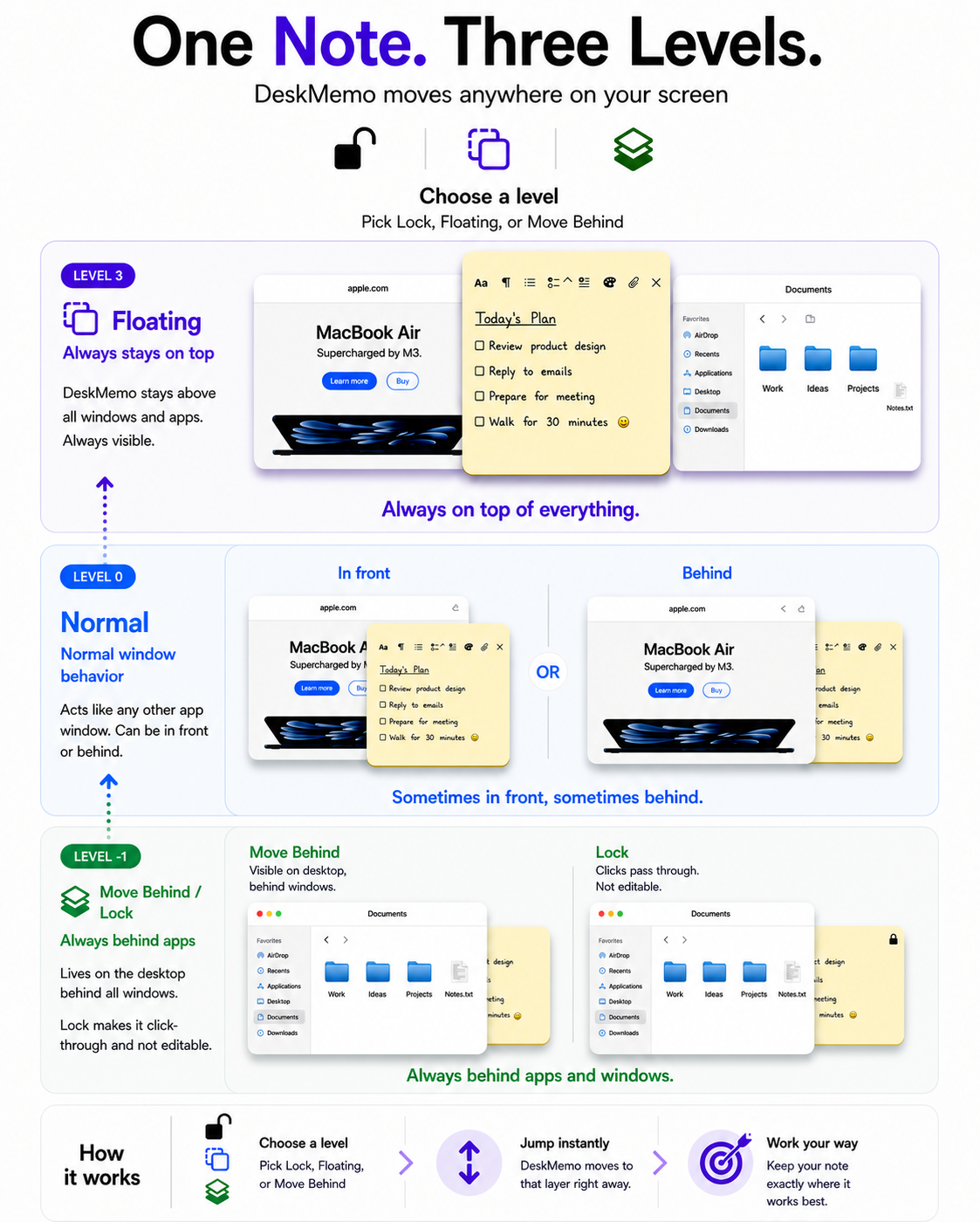
Three toolbar icons — Lock, Float on Top, and Move Behind All Windows — control where each note sits in your Mac's visual stack.
Above all appsFloat on Top
Keeps the note above every app window on your Mac. Safari, Finder, full-screen video — the note stays visible on top of all of them.
The note is still fully interactive — click, edit, and move while it floats.
Use for: reference notes and checklists you need to see while working in another app.
Below all apps · Still interactiveMove Behind All Windows
Moves the note below all app and browser windows. When you no longer need it in view, click Move Behind to hide it from your screen. To get it back, use Show Desktop on your Mac, then click the note to bring it forward for editing.
The note stays fully editable — it is not locked.
Use for: Shopping lists you check occasionally · Reference cards you pull up between tasks · Notes you want accessible but out of your way
Below apps · Click-throughLock
Locks the note to your wallpaper and makes it click-through — your mouse passes straight through it as if it isn't there. The note stays visible on your desktop, but you can click, open apps, and use your desktop completely normally. It sits in the background without ever interfering.
The toolbar disappears. Unlock anytime from the DeskMemo menu bar icon.
Use for: vision boards, wallpaper photo pins, goal boards and inspiration notes you want always visible but never in the way.
These three positions — Float, Normal, and Move Behind / Lock — each correspond to a distinct window level in macOS. Here is where everything sits in that stack.
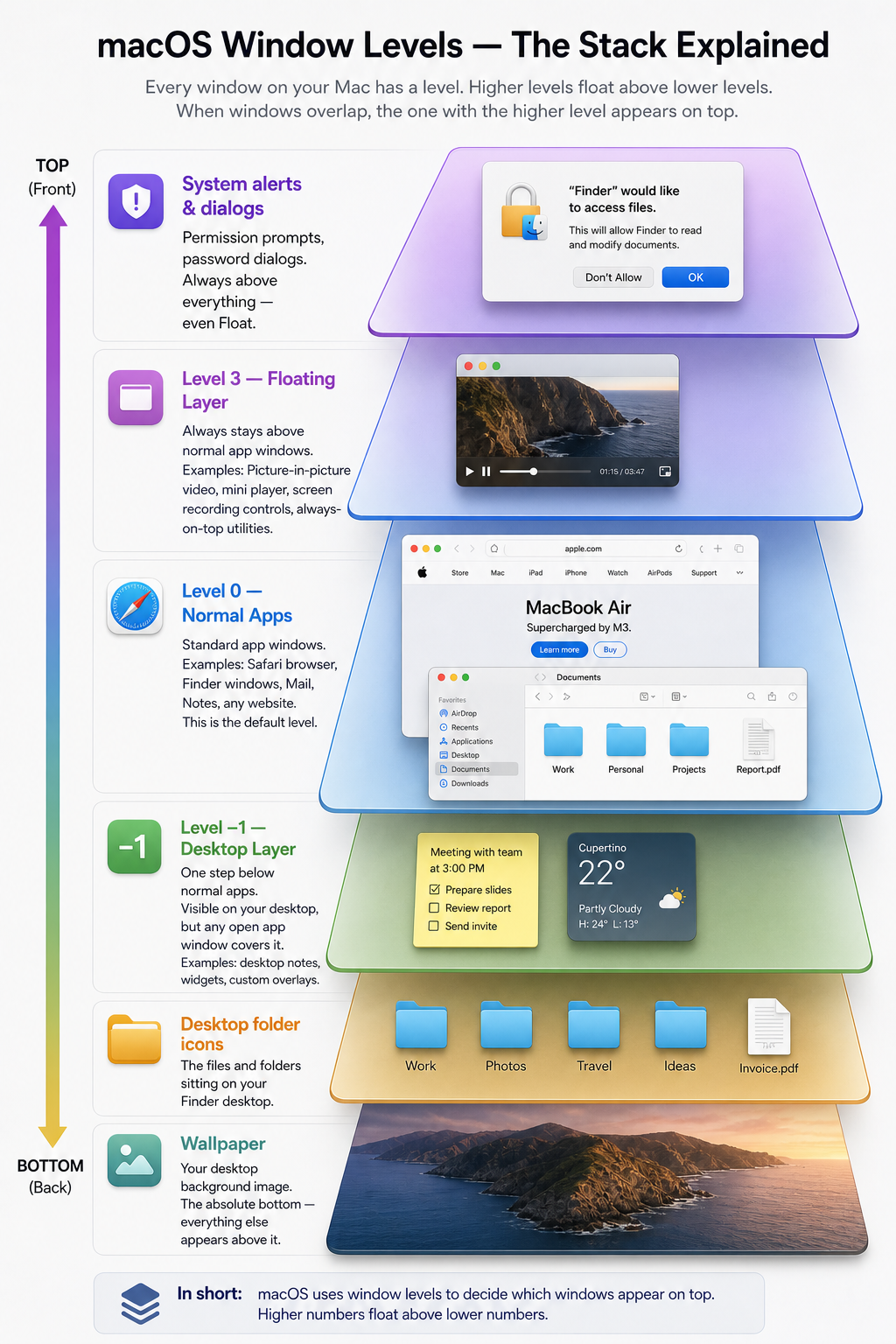
How macOS Decides What Appears on Top
Every window on your Mac has an invisible number called a window level. Higher numbers float above lower numbers. When two windows overlap, the one with the higher level wins.
System alerts & dialogs
Permission prompts, password dialogs. Always above everything — even Float.
Level 3 — Float
Above all normal app windows. Visible on top of Safari, Finder, everything.
Level 0 — Normal apps
Every standard app: Safari, Chrome, Mail, Finder windows, any website. The default level.
Level −1
One step below normal apps. Visible on your desktop, but any open app window covers it.
Desktop folder icons
The files and folders sitting on your Finder desktop.
Wallpaper
Your desktop background image. The absolute bottom — everything else appears above it.
Side-by-Side Comparison
No button active
Float on Top
Move Behind
Lock
Position
Normal app level — same as other app windows
Above all apps
Below all apps
Below all apps
Window level
Level 0 — same as Safari
Level 3 — above everything
Level −1 — below apps, visible on desktop
Level −1 — same as Move Behind
Click-through
No
No
No — clicking brings it forward
Yes — clicks pass through
Editable
Yes
Yes
Yes
No
Toolbar visible
Yes
Yes
Yes
No — hidden when locked
Best for
Normal editing and use
Reference notes visible while working in other apps
Three note types, each designed for a different way of working — all living on your Mac desktop.
🗒️
Normal Mode
The core DeskMemo experience — a floating sticky note on your desktop. Full rich text with bold, italic, highlights, and font sizes. Add inline images, create interactive checklists, and keep everything visible while you work in any other app.
🖼️
Canvas Mode
A free-form infinite canvas where you place Text blocks and Task blocks anywhere on screen. Zoom from 10% to 400%. Attach images, PDFs, videos, Word and Excel files directly to the canvas.
📋
Outline Note
Hierarchical notes with unlimited nesting depth. Tab to indent, drag to reorder, attach files to any individual row, and collapse sections you're not working on.
Format & Style
🖊️
Rich Text Formatting
Bold, italic, underline, colours, and highlights. Choose font family and size per note.
🎨
Note Backgrounds & Style
Background colours, borders, and adjustable opacity. Enable Liquid Glass mode for a native macOS 26 look.
↔️
Note Size & Position
Drag notes anywhere on screen and resize to any dimension. Position and size are saved automatically.
Media
📎
Pin Photos & PDFs to Desktop
Attach any image or PDF as a note. Lock it to press permanently to your wallpaper.
📄
Office File Attachments
Attach Word and Excel files directly to any note with inline preview.
🎬
Video & Audio
Attach and play video and audio files inside any note without switching apps.
Organise
📁
Folders
Group notes by project or topic. Keep your note list and desktop clutter-free.
✅
Checklists & Reminders
Interactive to-do lists with checkboxes and due dates. Syncs with Apple Reminders.
📊
Eisenhower Matrix
Assign tasks to four priority quadrants — Important/Urgent, Important, Urgent, or Neither.
Trust
☁️
iCloud Sync
Notes sync automatically across all your Macs. Your data stays in your own iCloud — never on our servers.
🔐
Privacy First
Zero data collected. No analytics, no tracking, no account required.
💾
Save Anywhere
Choose where your notes are stored. Pick an iCloud folder to sync across Macs, or any local folder to keep them on just this device.
Pricing
Simple Pricing
One plan. Everything included. Cancel anytime.
DeskMemo7-day free trial — no credit card required
HK$10/ month
Billed monthly. Cancel anytime from the App Store.
All note types — normal, canvas, outline
All toolbar controls — Lock, Float on Top, Move Behind
iCloud sync across all your Macs
Canvas mode with infinite workspace
File attachments — images, PDFs, video, Word, Excel